

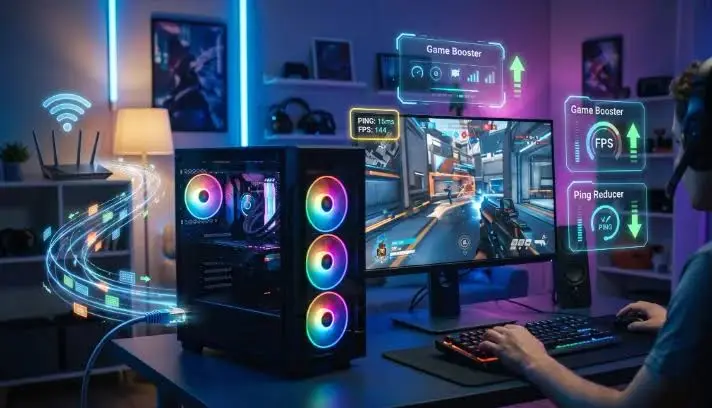
PC gaming is more enjoyable when games run smoothly, load quickly, and respond without delays. However, not every gamer has an expensive computer with the latest graphics card or processor. Many players experience low FPS, sudden frame drops, high ping, and unexpected lag, even when their computers meet the basic requirements of their favorite games.
The good news is that upgrading your hardware is not always the first solution. You can improve your gaming experience by managing background applications, updating drivers, optimizing Windows settings, and improving your internet connection. Using a reliable optimization utility such as Smart Game Booster can also help make these tasks easier.
Whether you enjoy competitive shooting games, racing games, sports titles, or online multiplayer adventures, a few practical changes can make a difference. This guide explains how to optimize your PC for gaming and reduce common performance problems without immediately spending money on new hardware.
1. Understand What Causes Gaming Lag
Before trying different solutions, it is important to understand why games sometimes run poorly. Gaming performance depends on several hardware and network components working together.
Here are some common reasons behind gaming problems:
- Low FPS: Your graphics card or processor may struggle to render game scenes smoothly.
- High ping: Your internet connection may take too long to communicate with the game server.
- Frame drops: Background applications or limited system resources can interrupt gameplay.
- Overheating: High CPU or GPU temperatures can reduce performance.
- Outdated drivers: Old graphics and audio drivers may cause compatibility or performance issues.
- Storage problems: Limited disk space and fragmented files on traditional hard drives can affect system responsiveness.
Identifying the actual problem is important because FPS issues and network lag require different solutions. For example, upgrading your internet connection will not necessarily improve low FPS caused by an overloaded graphics card.
2. Close Unnecessary Background Applications
One of the easiest ways to improve gaming performance is to close applications that you do not need while playing.
Web browsers, download managers, video editing software, and other programs can consume CPU power and RAM. When too many applications run together, your computer has fewer resources available for the game.
You can manage these applications through Windows Task Manager.
Follow these steps:
- Press Ctrl + Shift + Esc to open Task Manager.
- Select the Processes tab.
- Check which applications are using the most CPU and memory.
- Close programs that you recognize and do not need.
- Open your game and check whether performance improves.
Be careful when closing background processes. Some Windows services are important for normal system operation. Avoid ending unfamiliar system processes simply because they use resources.
A dedicated optimization utility can make this process more convenient. For example, Smart Game Booster includes PC Boost features designed to disable unnecessary background applications and services before gaming.
3. Keep Your Graphics Drivers Updated
Graphics drivers help Windows communicate with your GPU. Outdated or incompatible drivers can sometimes cause crashes, visual problems, stuttering, and poor performance.
NVIDIA, AMD, and Intel regularly release driver updates to improve compatibility with newer games and fix known problems.
You can update your drivers manually by visiting your graphics card manufacturer’s official website.
Another option is to use a driver management utility. Smart Game Booster includes tools for updating graphics and audio drivers. Depending on the available account features, users can update drivers manually or use automatic updates.
However, updating every driver without checking compatibility is not always necessary. Focus on graphics and other important drivers when troubleshooting gaming problems.
4. Improve FPS Through Better PC Optimization
FPS, or frames per second, measures how many images your computer displays every second. Higher and more stable FPS generally makes gameplay feel smoother.
If your game frequently drops frames, try these practical adjustments:
Lower demanding graphics settings: Reduce shadows, reflections, anti-aliasing, and other demanding visual effects. These settings can place considerable pressure on your GPU.
Choose a suitable resolution: Playing at a lower resolution can help improve FPS on computers with limited graphics power.
Enable Game Mode: Windows Game Mode can help prioritize gaming activity and manage certain background tasks.
Check your startup applications: Disable unnecessary applications that automatically launch when Windows starts.
Keep enough storage space available: Remove temporary files and applications you no longer use.
Smart Game Booster also offers system cleaning, performance adjustments, and game-file defragmentation tools. Its Super Boost feature provides additional GPU and VRAM tuning options on supported plans.
Remember that performance improvements depend on your hardware, game settings, and system condition. No optimization program can guarantee the same FPS increase on every computer.
5. Reduce Ping and Improve Your Internet Connection
A powerful PC cannot guarantee smooth online gaming if your internet connection is unstable. Multiplayer games require continuous communication between your computer and the game server. When this communication is delayed, you may experience high ping, rubber-banding, delayed actions, or sudden disconnections.
Ping is measured in milliseconds (ms). Generally, lower ping means faster communication between your computer and the server.
Try these tips to improve your connection:
- Use an Ethernet cable: A wired connection is usually more stable than Wi-Fi.
- Stop unnecessary downloads: Pause large downloads and updates while playing.
- Avoid network congestion: Limit streaming and other heavy internet activities on your network.
- Choose a nearby game server: Playing on a geographically closer server can reduce communication delays.
- Restart your router: This can sometimes resolve temporary connection problems.
- Check your internet speed: Make sure your connection is stable during gaming sessions.
Can a Ping Booster Help Reduce Gaming Lag?
A Ping Booster is a useful option to consider when your main problem is network latency rather than low FPS. Some network optimization tools improve the route used by game traffic, helping players avoid inefficient connections.
Smart Game Booster includes a Network Acceleration feature designed to improve online gaming connections. According to iTop, its latest version provides access to more than 500 gaming servers worldwide. It is designed to reduce latency, lower packet loss, and provide more stable connections for supported games.
The feature can also help players connect to game servers in different regions. This may be useful when playing with international friends or accessing supported games across different locations.
However, results depend on your internet service provider, server distance, network congestion, and the game’s own infrastructure. Network acceleration cannot guarantee lower ping in every situation.
It is also worth knowing that Network Acceleration is included in the SVIP plan, rather than the basic free version or VIP plan. Therefore, check the available features before choosing a subscription.
6. Monitor CPU and GPU Temperature
Overheating is another common reason behind poor gaming performance. When a processor or graphics card becomes too hot, it may automatically reduce its speed to protect itself.
This can lead to unexpected FPS drops, stuttering, and unstable gameplay.
You can prevent overheating by following these suggestions:
- Keep your computer’s ventilation areas clean.
- Make sure your PC has enough airflow.
- Avoid placing a laptop on soft surfaces that block its air vents.
- Check CPU and GPU temperatures during demanding games.
- Clean dust from fans and cooling components when necessary.
Smart Game Booster provides real-time hardware monitoring, allowing users to check CPU and GPU temperatures and resource consumption. It also supports an in-game HUD that can display FPS and hardware temperatures.
These monitoring options help you understand whether overheating or high resource usage might be affecting your gaming experience.
7. Check Whether Your PC Can Run a Game
Sometimes a game performs poorly because the computer does not meet its recommended hardware requirements.
Before downloading a large game, check its minimum and recommended requirements. Pay attention to the processor, graphics card, RAM, and available storage.
The minimum requirements usually indicate the basic hardware needed to run a game. Recommended requirements provide a better idea of the hardware needed for a more comfortable experience.
Smart Game Booster includes a Can I Run It feature that allows users to check whether their computers meet the minimum and recommended requirements of different games.
This can help you make better decisions before installing a demanding title. It can also show when changing graphics settings may be more practical than expecting a software optimization tool to solve a hardware limitation.
8. How to Use Smart Game Booster
If you want to manage different gaming optimization tasks from one place, Smart Game Booster provides several useful features.
Getting started is relatively simple:
- Download the software from the official iTop website.
- Install it on your Windows computer.
- Open the application and allow it to detect your installed games.
- Select the game you want to play.
- Review the available PC Boost and Network Acceleration options.
- Apply the suitable optimization settings.
- Launch your game and monitor its performance.
If your game is not detected automatically, you can add it manually through the application.
Another useful option is the Restore feature, which allows you to return your system to its previous configuration after boosting.
The software supports Windows 7, 8, 8.1, 10, and 11 according to its user manual. Its free version provides basic boosting and manual driver updates, while paid plans unlock additional features.
iTop VPN+1
9. Is Smart Game Booster Worth Trying?
For gamers who want a convenient way to manage their PC performance, Smart Game Booster is worth considering.
Instead of installing separate tools for every small task, users can access several gaming-related features through one application. These include PC optimization, driver updates, hardware monitoring, game compatibility checks, and network acceleration.
Its main advantages include:
- Easy-to-use interface for PC gamers.
- One-click PC optimization.
- Graphics and audio driver management.
- Real-time FPS and temperature monitoring.
- Game compatibility checking.
- Additional GPU optimization options.
- Network acceleration for supported games with the SVIP plan.
However, it is important to have realistic expectations. Software optimization cannot replace a weak graphics card, increase your internet package speed, or eliminate every type of gaming lag.
The best results usually come from combining software optimization with suitable hardware settings and a stable internet connection.
Final Thoughts
Improving PC gaming performance does not always require purchasing expensive hardware. Simple actions such as closing unnecessary applications, updating graphics drivers, managing storage, monitoring temperatures, and selecting appropriate game settings can help create a smoother gaming experience.
Network performance is equally important for multiplayer games. Using a suitable Pin
g Booster, choosing a closer game server, and maintaining a stable internet connection can help address some common latency problems.
Smart Game Booster brings several of these optimization features together in one Windows application. Its combination of PC Boost, performance monitoring, driver management, and Network Acceleration makes it an option worth exploring for gamers who want better control over their gaming environment.
Before choosing any paid features, try the available free options and check whether the software makes a noticeable difference on your own computer.
Also Read
- https://flirtsnacks.com/why-does-a-washing-machine-smell-musty-even-when-its-used-every-week/
https://flirtsnacks.com/some-groups-in-your-data-can-answer-the-question-and-some-cannot/
https://flirtsnacks.com/why-e-liquid-storage-conditions-matter-light-heat-and-shelf-life/

